Two Software, Two Different Worlds
One of the most common confusions in the Adobe world is the difference between Premiere Pro and After Effects. Many think they are interchangeable, but in reality, they serve very different purposes and work better together rather than as alternatives.
In short: Premiere Pro is for editing (cutting, assembling, and finalizing videos), while After Effects is for post-production (animations, visual effects, motion graphics). Let's take a closer look.
Adobe Premiere Pro: The King of Editing
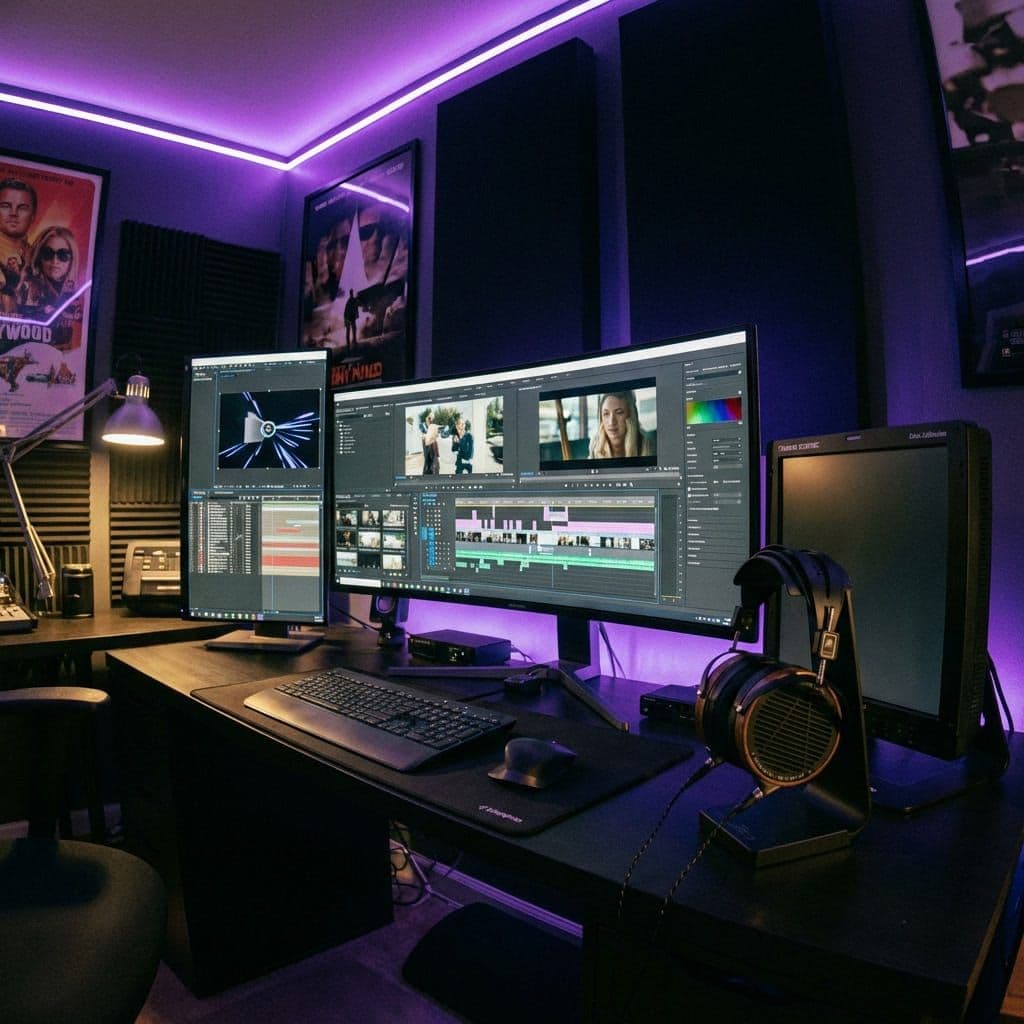
Premiere Pro is the most widely used non-linear video editing software in the world, from YouTubers to Hollywood productions:
- Multi-Track Timeline Manage dozens of video and audio tracks simultaneously, with intuitive drag-and-drop and frame-accurate editing.
- Lumetri Color Grading Professional color correction system integrated with curves, color wheels, and customizable LUTs.
- Advanced Audio Editing Essential Sound panel for audio mixing, AI noise reduction, and automatic synchronization.
- Universal Export Export in any format: H.264, ProRes, DNxHR, for YouTube, cinema, broadcast, or social.
- AI Auto-Reframe Automatically reformats videos for different aspect ratios (16:9 → 9:16 for TikTok/Reels).
Adobe After Effects: The Wizard of Effects
After Effects is the ultimate tool for motion design, VFX, and compositing:
- Motion Graphics Create animated titles, lower thirds, custom transitions, and animated graphics for videos and presentations.
- Visual Compositing Combine multiple elements (video, photos, 3D, text) into complex scenes with masks, tracking, and keying.
- Special Effects Explosions, particles, distortions, simulations: an extensive library of cinematic effects.
- Integrated 3D Work with 3D layers, virtual cameras, and lights to create depth without leaving the app.
- Expressions Automate complex animations with JavaScript-like code for procedural movements.
Direct Comparison
| Aspect | Premiere Pro | After Effects |
|---|---|---|
| Main Purpose | Video editing | Motion graphics and VFX |
| Timeline | Multi-track linear | Composition-based (layer) |
| Long Videos | Optimal (films, documentaries) | Not suitable (slow with long videos) |
| Animations | Basic (simple titles) | Highly advanced (precise keyframes) |
| Color Grading | Lumetri (professional) | Basic |
| Special Effects | Limited | Extensive library |
| Audio | Full editing | Basic |
| Rendering | Fast (GPU accelerated) | Slower (frame-by-frame) |
| Price (Micro-ESD) | From €39.99 | From €39.99 |
The Professional Workflow: Using Them Together
Professionals do not choose one OR the other — they use them together with the Dynamic Link workflow:
- Step 1: Editing in Premiere Pro Assemble the video, cut the scenes, synchronize the audio, and do the color grading
- Step 2: Effects in After Effects Create animated titles, lower thirds, transitions, and VFX in separate compositions
- Step 3: Dynamic Link Import After Effects compositions directly into the Premiere Pro timeline without intermediate rendering
- Step 4: Export from Premiere Export the final project with everything integrated, in one go
This flow is standard in the industry, from YouTube to Netflix. Dynamic Link eliminates the need to export intermediate files, saving time and disk space.
Which One to Choose?
✅ Only Premiere Pro if:
- You do classic video editing (vlogs, documentaries, corporate videos)
- You don't need complex animations or VFX
- You are a content creator publishing on YouTube/social
✅ Only After Effects if:
- You create motion graphics and animations for brands
- You work with VFX and compositing
- You produce intros, animated titles, and graphics for others' videos
✅ Both (Creative Cloud) if:
- You are a complete professional videomaker
- You work in an agency or production studio
- You want maximum creative flexibility
🛒 Buy Adobe Video on Micro-ESD
Original Adobe licenses for professional video editing.